Home > TestDrive Fundamentals > TestDrive Portal Usage
TestDrive Portal Walkthrough
The TestDrive portal is your starting point for access to explore EUC products. In this guide we'll walk through the basics of how to use the TestDrive portal and your account.
Overview
- Log in to the TestDrive Portal
- Your Account Settings
- My Products Page
- Knowledge Base & Support
- Open a Support Request and Give Feedback
Before you begin this guide ensure you have signed up for an account using the instructions located in Getting Started with TestDrive.
Log in to the TestDrive Portal
Access the TestDrive portal at testdrive.omnissa.com.
Omnissa Connect is used for TestDrive authorization. Use your Omnissa Account account to authenticate.
Your Account Profile
Once you're logged in, go to the top right by your ID, click the dropdown and access your profile.
You can make adjustments to you name and other open fields.
You can also permanently delete your account if you no longer want a TestDrive account.
Manage your password through Omnissa Connect.
DemoZone Area
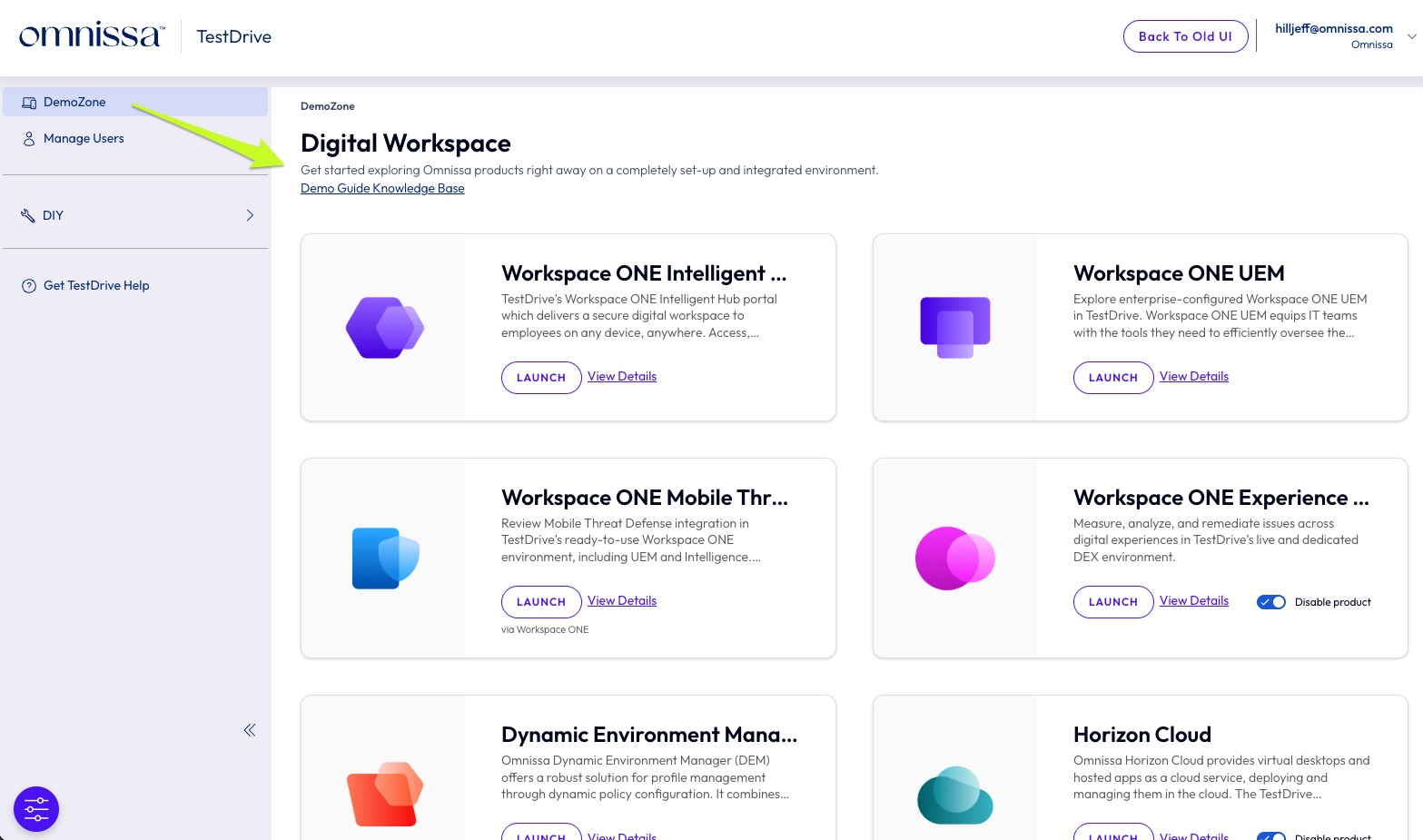
Formerly known as ready-to-use (RTU), this main area in the TestDrive portal is where the demo environments are accessed. Here you enable products, launch products, link to walkthrough guides, and view your credentials inside a tile.
-
DemoZone - Fully configured and integrated services which are maintained by the TestDrive team. We've set up sample customer workflows so you can see the products in the configured state that would be common in the real world. No configuration is required, just launch into the products and start using them.
-
Sample Integrations - These are 3rd party partner integrations that provision licenses into a TestDrive demo tenant. These integrations are available for use in the ready-to-use Workspace ONE experiences. For example, with Dropbox enabled you can SSO into Dropbox from Workspace ONE.
- Manage Users - Only visible to partners and employees, i.e., Super Users, this is where customer invites and their accounts are managed.
DIY
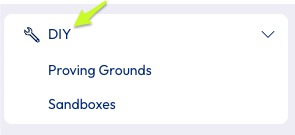
This area contains do-it-yourself environments. User entitlements depend on business rules and RBAC, so not all users will have access to every sub-area. Refer to the respective guides for details.
- Proving Grounds(partners and employees only)
- Sandboxes (customers only)
Use an environment's tile enable it, launch it, and view account details.
Knowledge Base & Support
If you ever run into an issue, you can reach out the support team using the link on the left menu: Get TestDrive Help